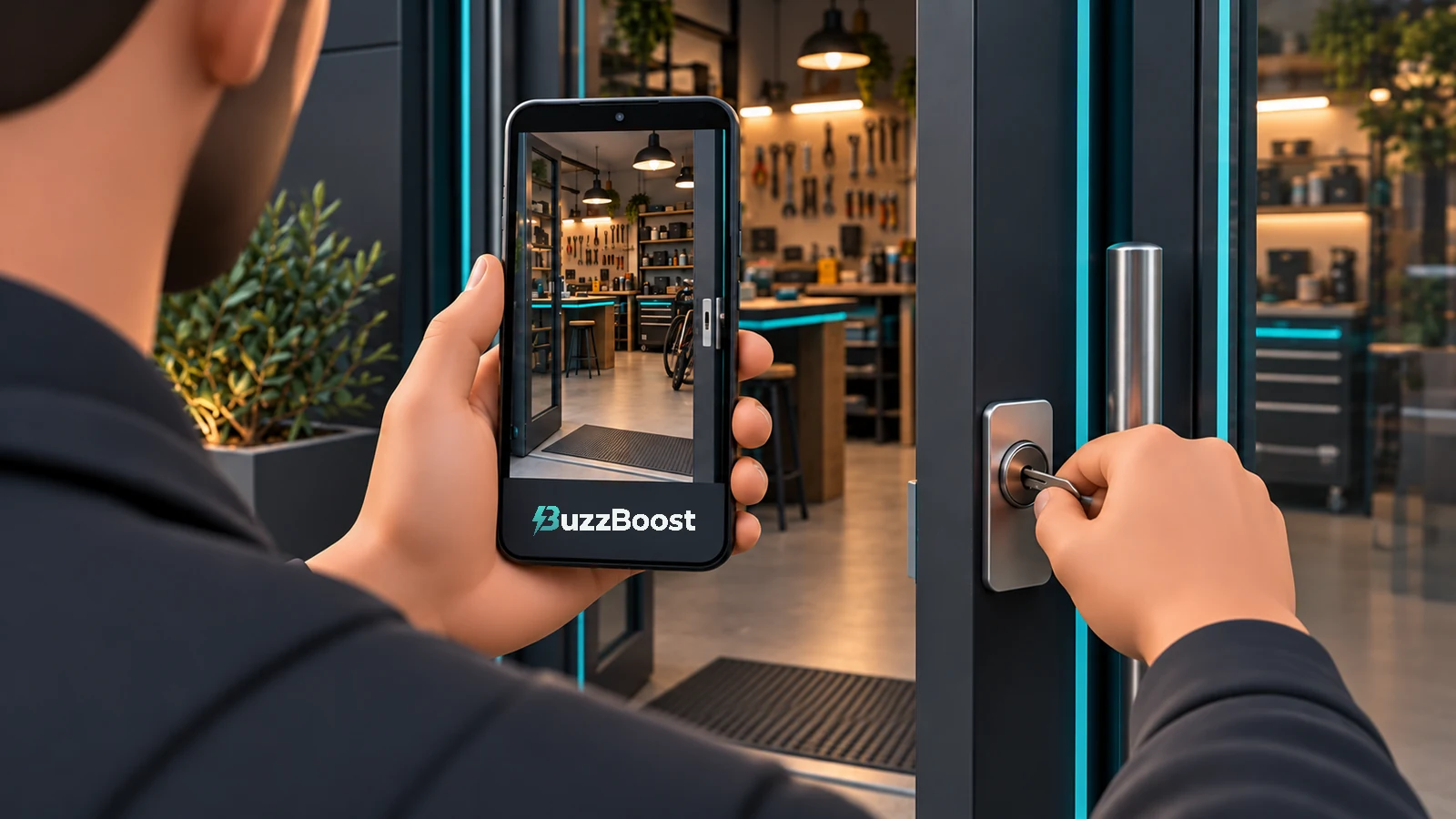

Google asks for a verification video, but what should you actually film? For a busy shop owner or tradesperson, the difficult part is arranging a clear recording while keeping customers, private information and day-to-day work out of the way.
Start by checking that the profile describes the business correctly. Then plan a short, practical route through the evidence you can genuinely show. If an earlier attempt failed, use the stated reason to change the next recording.
Check the business before you reach for your phone
Google’s eligibility and ownership guidelines generally require in-person contact with customers during your stated hours, with specific exceptions. Online-only businesses are ineligible. Only owners or authorised representatives may verify a profile.
A better video cannot resolve an ineligible business model. If you sell solely through a website and never meet customers, pause before spending time on another recording. If you operate from shared premises, establish exactly which business and location you have authority to represent.
Under Google’s business representation guidelines, a rented postal address where you do not operate is not an eligible location. A co-working office must have clear signage, receive customers and be staffed during opening hours by your own staff. Your profile name should reflect your real-world business name.
Compare the profile with what a customer encounters: the entrance, your website and your actual working arrangements. Resolve a mismatch honestly. Avoid adding a town or service phrase to the name simply because you want visibility for that search.
Use the right type of location
Google’s service-area guidance says to remove the public address if customers are not served there. A hybrid business serves customers at its premises and also visits or delivers to them; a shopfront needs permanent on-site signage.
This matters when planning your evidence. A mobile business and a customer-facing premises have different working contexts. Describe the operation you have, rather than changing the profile to fit an easier-looking recording.
Check which verification method Google offers
Open the existing profile while signed into its associated Google Account. Google’s verification guidance says methods are selected automatically. The available options depend on factors including business type, public information, region and opening hours. Some businesses need more than one method.
Check whether you have been offered a video recording or a live video call. The latter involves a support representative and is available only during the location’s opening hours. Treat the option displayed in your profile as the starting point.
Before booking an employee’s time, confirm that you can reach the verification screen on the phone you intend to use. If the wrong business appears, sort out the account or profile first. Keep a brief record of the current status so everyone helping knows whether you are preparing a submission or following up an existing review.
What the verification video must show
Google’s current video requirements call for one unique, unedited recording without breaks, lasting at least 30 seconds. Capture and upload it through your Business Profile on a mobile device; do not film offline for later upload. Exclude private information, sensitive numbers and other people’s faces.
The evidence must establish location, business activity and your authority to manage it. For a shopfront, include nearby location identifiers, permanent business-name signage matching the profile, and employee-only access. For a service-area business, show local identifiers, genuine work equipment and management evidence such as accessing a branded work van.
Think about what a reviewer can understand from the footage alone. A close-up may show an object clearly while losing the context around it. A wide view may establish the setting while making the important detail too small. Plan deliberate framing rather than sweeping the camera around quickly.
Rehearse a route that fits your working day
The following is a practical preparation plan, not an additional Google requirement. Walk the route without recording first. Decide where you will stand, what you will point the camera towards and which doors or storage areas you need to reach.
For a shop or customer-facing premises
Choose a quiet period when you can move without interrupting customers. Check the light outside and inside: reflections on glass or a dark entrance can make a perfectly familiar place hard to understand on a small screen.
Arrange the route so that the relationship between the street, entrance and working premises remains obvious. Have the responsible person ready to operate any access point you plan to demonstrate. Check that the route does not end at a locked door whose key is somewhere else.
Do a privacy walk-through before starting. Look for appointment lists, customer parcels with address labels, open account screens and paperwork left beside the till. Move unnecessary material out of view. You should not need to disrupt normal business operations to make the recording understandable.
For a business that travels to customers
Choose a time when the vehicle and relevant equipment are actually available. Avoid asking someone to gather items from different jobs at the last minute. Decide which part of the working setup most clearly represents what the business does.
Check the camera angle around the vehicle before you begin. Reflections can reveal someone you did not intend to film; open doors can also block the view. Keep the route manageable for one person holding a phone, especially if you need a free hand to use a key or open a compartment.
Prepare the genuine working environment rather than dressing it for a promotional shoot. The aim is an understandable record. Cinematic editing, music and a polished sales pitch would add work without helping you carry out this task.
Record, review and confirm the upload
In the profile, choose Get verified and the Business video option. Follow the permission prompts, record, review and upload. Google’s submission instructions explain this sequence.
Charge the phone beforehand and check that you have a usable connection along the route. These are preparation checks, not guarantees against upload problems. Allow enough uninterrupted time to finish the submission rather than trying to squeeze it between customer appointments.
Use the review step to assess what was captured, not what you remember seeing in person. If the important detail is obscured, repeat the recording before submitting. Once uploaded, note the date and displayed status. Finishing a recording and completing its upload are separate milestones.
If verification fails, identify the stage
An upload problem, a pending review and a rejected video need different next steps. Start with the exact status or message rather than assuming every delay means the evidence was rejected.
- Upload failed: note the error and where it happened. Google’s video guidance says to try uploading again. If it keeps failing, record the device and submission route so you can explain the technical problem clearly.
- Still under review: Google’s general verification guidance allows up to five working days, with rare cases taking longer. Count from the completed submission and check the profile for a decision.
- Review issues: open the feedback and follow the instructions. Google’s video guidance says a replacement should include both the earlier evidence and whatever was missing.
Those steps follow Google’s video troubleshooting guidance and verification review guidance. If available methods still do not resolve the problem, use the support route linked from the official help page.
For a support request, keep the explanation factual: profile concerned, submission date, current message, what you tried and what happened. Take screenshots of errors after recording, with private details removed. Avoid guessing that a particular camera angle or device caused rejection unless the feedback supports that conclusion.
Keep ownership clear when someone helps
If an agency helps, agree who will prepare the route, who will record and who will monitor the decision. Google’s eligibility guidance requires authorised representatives to work directly with the owner during verification.
For ongoing assistance, Google’s owner and manager guidance provides separate access through each person’s Google Account, without sharing passwords. Managers can handle many daily tasks, while owners control user access. Keep the business owner involved in decisions about the listing.
After approval, check the public profile’s name, contact details and customer-facing location information. Test the website link as a customer would. Verification completes one administrative task; a useful profile still needs accurate information and a working route to an enquiry.
Make the next attempt purposeful
Before recording again, agree what will change: the profile information, the route, the visibility of an important detail or the handling of an upload error. That gives the next attempt a clear purpose and avoids repeating the same work.
BuzzBoost’s SEO services connect local visibility with the website and customer journey. If you need help checking whether your profile, website and enquiry route tell a consistent story, talk to BuzzBoost about the next practical step.
Featured image: AI-generated editorial artwork, not a photograph of a real BuzzBoost office, client or result.