





Customers can find your business on Google and still arrive at a locked yard, a neighbouring unit or the road behind your building. If you run appointments, a showroom or a collection counter, getting found is only part of the job. People need to reach the right door.
Before moving the map pin, establish what is wrong. Your business location, its street address, the road network and the suggested route need separate checks. The aim is to correct the faulty information and test the visit, rather than keep editing the profile until the map looks different.
Identify where the journey goes wrong
Start with one reproducible example. Ask which link the customer opened, whether they searched for your business name or entered an address, and whether they were driving or walking. Then recreate that journey using a public starting point.
Compare the result with the entrance customers can actually use:
- The named business appears on the wrong building: investigate the Business Profile address and pin.
- The business is correctly placed, but an address-only search lands elsewhere: investigate the underlying address on Maps.
- The destination is right, but the route uses an unsuitable road or stops behind a barrier: investigate the road information and the specific directions.
- Searching works, but your website’s directions button goes elsewhere: inspect that link before changing the public listing.
For example, a workshop could be correctly marked on an industrial estate while a driving route approaches through a closed rear yard. Moving its pin onto a neighbouring road would not be our first repair. Record the closed approach and the usable customer access, then investigate the route.
Keep screenshots of the destination and the faulty step, the travel mode, the test date and the link used. This gives your team or agency something concrete to reproduce.
Correct the business address or pin when it is wrong
Keep the address factual
Check the full street address, postcode and relevant unit, building or floor details. Google’s business-address guidance asks for a complete address and explains how to adjust the pin when Google cannot locate the business correctly.
Keep arrival instructions on your website rather than squeezing them into address fields. Google’s Business Profile guidelines require an accurate real-world location and prohibit unrelated information such as keywords or URLs in address lines. They allow nearby landmarks in regions where the official address does not accurately pinpoint the location.
Adjust an inaccurate pin
In your Business Profile, open Edit profile > Location, edit Business location, then choose Adjust. Move the map so the pin identifies your business location, select Done and save. Zoom in enough to distinguish your premises from neighbouring units.
Keep the pin faithful to the business location. Do not use an inaccurate position as a workaround for a route problem.
If you have genuinely moved premises, Google’s current profile-editing guidance says you must verify the business again after moving to a new address. Distinguish that relocation from correcting a misplaced pin at your existing premises.
If customers do not visit your address at all, review whether it should be public. Our guide to service areas and hidden addresses covers that separate decision.
Fix the map address if that is the faulty record
Test the street address independently of the business name. This is particularly useful when a customer types your address manually rather than opening the named listing.
Google provides a separate process to fix a missing address or wrong address pin. On a computer, search for the address, choose Suggest an edit > Wrong pin location or address, enter the corrected information and submit it. The same guidance explains how to add a missing address.
A private label saved in your own Maps account is not a public correction: Google says only you can see your private labels. Test the public destination rather than relying on a label that looks right when you are signed in.
Report incorrect directions or road information
The wrong turn or final approach
If the business is correctly located, reproduce the faulty route before reporting it. Use the same starting point, destination and travel mode so that the problem step is visible.
Google’s wrong-directions reporting instructions currently use the desktop version of Maps:
- Open Directions and enter the starting point and destination.
- Select the affected route and open Details.
- Choose Send Product Feedback at the bottom right of the map.
- Flag the incorrect step, select the problem type and submit.
Google limits this reporting route to certain countries or regions and excludes public transport directions. Check whether the option is offered for your route rather than assuming every account will show it.
Describe the observable fault: for example, the route reaches a permanently closed gate while customer access is from another street. Include the affected road or turning, rather than simply saying the directions are wrong.
A missing road or incorrect restriction
For a missing access road, incorrect road shape, closure or one-way information, use Google’s separate Add or fix a road process. On desktop, this starts under Menu > Edit the map > Add or fix a road. Road editing is also limited to supported countries and regions.
Report the real road arrangement. A business-pin change should not be used to disguise a mapping error, and a route report should not ask Google to send customers through access they cannot legally or practically use.
Check the edit status without promising an instant fix
Saving a change is not the same as confirming that customers can see it. Google’s Business Profile edit-status guidance distinguishes Accepted, Not approved and Pending changes. Reviews usually take up to ten minutes, but can take up to 30 days. Those are profile-edit review times, not a promised deadline for road or route corrections.
Record what you submitted and when. If a profile edit is rejected, check the reason and the appeal option where available. If Google later changes information following reports from other sources, the same guidance says you should receive a notification and see an alert in Edit profile.
Avoid making unrelated profile changes while investigating. Keeping a clear record makes it easier to see which correction was accepted and which problem remains.
Help customers arrive while the correction is reviewed
Use your website’s contact or location page to explain the final approach in ordinary language. State the customer entrance, parking arrangements and any important difference between visitor access and deliveries. Include a working phone number for someone who can help during visiting hours.
For appointment or collection businesses, review the directions in confirmation emails too. A correct contact page will not help someone following an old link in their booking message.
Add genuine exterior photographs showing what visitors will see. Google’s business-photo guidance recommends exterior views from the different directions customers approach. It also says images should represent reality, without significant alterations or excessive filters or AI. Use photographs of your actual entrance for this purpose, rather than an editorial illustration.
Keep these instructions useful after the map correction. A correct destination still leaves visitors needing to recognise the door, find permitted parking and understand which entrance serves their appointment.
Verify the whole visit after the change
Our recommended acceptance check is a short customer-journey test, not just a screenshot of the editing screen:
- Public listing: open the business in a browser where you are not managing the profile and check its address and position.
- Relevant approaches: compare routes from a few sensible public starting points, including the approach that previously failed.
- Travel modes: check driving and walking separately where both matter to your customers.
- Owned links: open directions from the website, appointment confirmation and collection instructions on a phone.
- Physical arrival: ask someone unfamiliar with the premises to check whether the final approach and entrance are clear. Review the route before travelling and stop safely before using a device.
Record any remaining failure separately. If the address and pin are now correct but the route still uses the wrong gate, continue with the route investigation rather than undoing the accurate location.
Ask reception or collection staff to note further reports of customers getting lost, including which link or search they used. That gives you practical evidence of whether the repair has solved the problem.
If customers keep reaching the wrong place, talk to BuzzBoost about reviewing the journey from your search listing and website through to arrival. Bring the affected link, a screenshot of the faulty route and details of the correct customer entrance so we can identify a useful next step.
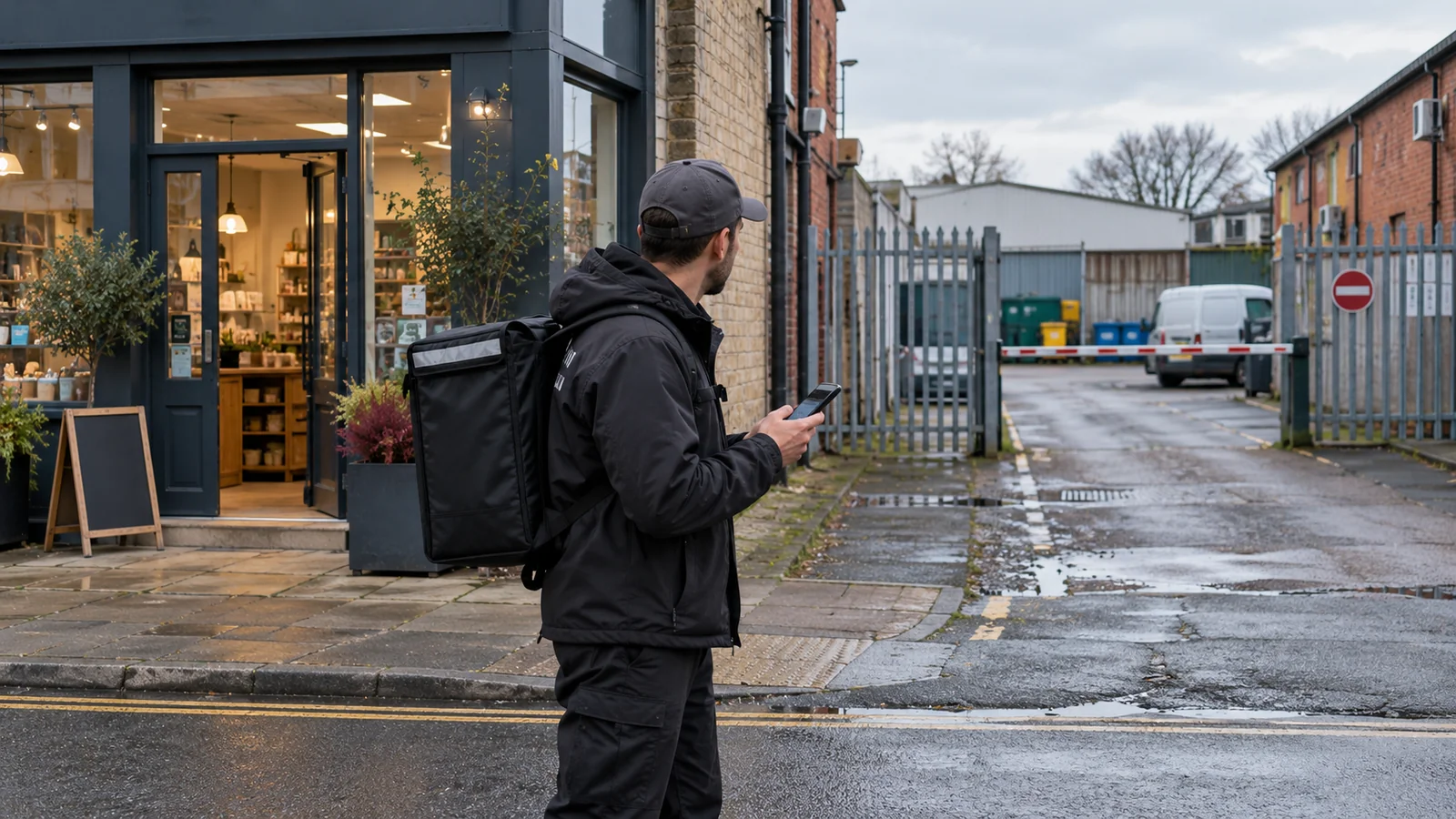
Featured image: AI-generated editorial artwork, not a photograph of a real BuzzBoost office, client or result.