







A missing GTIN warning can leave a retailer wondering whether to buy barcodes, change the product feed or mark everything as custom-made. Start by establishing which identifiers belong to the exact item you sell.
Google’s current guidance recommends supplying a manufacturer-assigned GTIN where one exists. Missing or incorrect GTINs can limit visibility. That is different from saying every product without a barcode is automatically disapproved. The message on the affected product matters.
This guide covers product identification in Merchant Center. If Google has identified the correct product but displays the wrong price or stock status, use our separate guide to price and availability mismatches.
Start with the exact issue and affected product
Open an affected item in Merchant Center and record the issue wording, item ID, landing page and selected variant. Note whether it is disapproved or has a warning, and which destination is affected. Work from that evidence before editing the whole catalogue.
For example, Google’s Incorrect product identifier guidance describes a specific situation: the feed says identifier_exists=false, but Google believes the product has a GTIN. That issue can keep an offer disapproved until accurate identifiers are supplied. It is not resolved by repeating the same declaration.
As a practical first pass, choose a small sample: one affected bestseller, another size or colour from the same range, and an unaffected product. Compare their source records and submitted attributes. This can help distinguish a missing supplier detail from a mapping problem affecting many products.
Know which identifier you are changing
These fields have different jobs:
- GTIN: the Global Trade Item Number identifying the trade item, often represented by the barcode on its packaging.
- MPN: the manufacturer’s part number.
- Brand: the product’s brand.
- Your SKU: the reference your business uses to manage stock. It should not be copied into manufacturer identifier fields simply because those fields are empty.
Google’s product identifier guidance says retailers selling the same manufactured product use the same assigned identifiers. Include the identifiers you can verify; leave an unknown value blank while investigating rather than borrowing one from a similar item.
There is an important exception for businesses making their own products. Google allows a manufacturer without an official brand to use its store name as the brand and choose a unique MPN. That does not give a reseller permission to invent an identifier for someone else’s product.
Check the physical product and the exact variant
Get the item or its original retail packaging in front of you. Compare it with the supplier’s product record and your website’s selected size, colour, capacity or pack quantity. Ask the supplier to confirm anything ambiguous against that exact item.
Under Google’s GTIN specification, different product variants need their correct GTINs. Copying one barcode across every size or colour is not a suitable shortcut. Accepted GTIN lengths include 8, 12, 13 and 14 digits; Google also requires a valid check digit.
For example, if two replacement filters fit the same appliance but have different capacities, check each package separately. A shared product photograph or similar name is not enough evidence to reuse an identifier. Treat that comparison as part of the catalogue repair, before changing feed rules.
Use GS1 to cross-check identity
Verified by GS1 lets you check a number’s structure, whether it was issued by GS1 and the company to which it is licensed. Product information may also be available, although detailed product records are not always present.
Use that information alongside the packaging and manufacturer’s confirmation. A plausible number or a successful scan does not establish that you have matched the right variant. If the available evidence conflicts, pause that item’s correction and resolve the discrepancy with the supplier.
What if the product genuinely has no GTIN?
First distinguish “the manufacturer has never assigned one” from “we have not obtained it yet”. Ask the supplier directly. A blank field in your shop does not establish that an identifier does not exist.
Google’s MPN specification requires an MPN for products without a manufacturer-assigned GTIN, while allowing exceptions where there is no clearly associated MPN or the product is custom-made. Use the manufacturer’s actual value wherever one is assigned. An MPN is not necessarily different for every clothing size, so avoid automatically generating one per variation.
The identifier_exists specification says to use no or false only when you are certain the product does not have assigned unique product identifiers. It gives examples such as certain custom goods and older products.
Make that decision product by product. A shop selling handmade pieces alongside bought-in branded stock should not apply a blanket “no identifiers” rule to both. Equally, do not create a pretend GTIN to make an empty field look complete. Keep the supplier’s confirmation with your internal product records so the decision can be checked later.
Repair the source that supplies Merchant Center
Before editing, trace the route: supplier data, stock system or shop record, feed integration, then Merchant Center. Identify where the wrong value first appears. We recommend correcting the earliest responsible source and checking the final submitted value afterwards.
Give the person making the repair a short, explicit mapping request. State which field contains the verified GTIN, where brand and MPN come from, how variants are matched and whether an existing rule changes identifier_exists. “Fix the Google feed” leaves too much room for assumptions.
If you use Shopify’s Google & YouTube channel
Shopify’s product synchronisation guidance directs merchants with a missing GTIN or MPN error to add the barcode in the product’s Inventory section, or add brand and MPN through the Google & YouTube channel for products without barcodes. Follow the appropriate route for the product’s actual identifiers.
Shopify also supports choosing which store data fills Google fields. Check that mapping if a correct shop value does not reach Merchant Center. Changing the visible product description will not address an identifier being read from a different field.
If you use another shop or a custom feed
Ask whoever maintains the integration to show the outgoing record for one affected item. Compare it with the verified source, including every digit and the variant association. Check for a generic fallback that copies an SKU into the GTIN field or marks all products as having no identifiers.
Test a small correction before a bulk import. Keep the existing item references during this investigation so you can compare the same offers before and after the change.
Verify the repair after the next update
Use a simple acceptance check for each sample item:
- The original product record contains the verified identifiers for that exact variant.
- The outgoing feed or integration record contains the intended values.
- Merchant Center displays those values on the matching item.
- The identifier issue has cleared after processing, or the remaining message has been investigated.
- A subsequent scheduled update leaves the correction intact.
Google advises that changes for the Incorrect product identifier issue may take 24–72 hours to appear on the Needs attention page. Avoid repeatedly changing correct values while waiting.
If the issue persists, gather the item ID, exact error, submitted attributes and manufacturer evidence for support. Keep unrelated price, availability or policy problems separate so an identifier repair is not mistaken for complete product approval.
Once the sample passes, extend the correction to products with the same confirmed cause. Review product eligibility first, then monitor visibility and commercial performance. Clearing an error establishes a better product record; it does not guarantee impressions, rankings or sales.
Give your catalogue a dependable handover
Assign someone responsibility for checking identifiers when new stock arrives or supplier data changes. For resold products, the useful handover is the exact variant, verified manufacturer identifiers and their source. For your own manufactured goods, document the identification approach consistently.
If your shop data looks correct but Merchant Center still reports identifier problems, talk to BuzzBoost. We can help investigate the product records and integration route, define a focused repair and check what actually reaches Google.
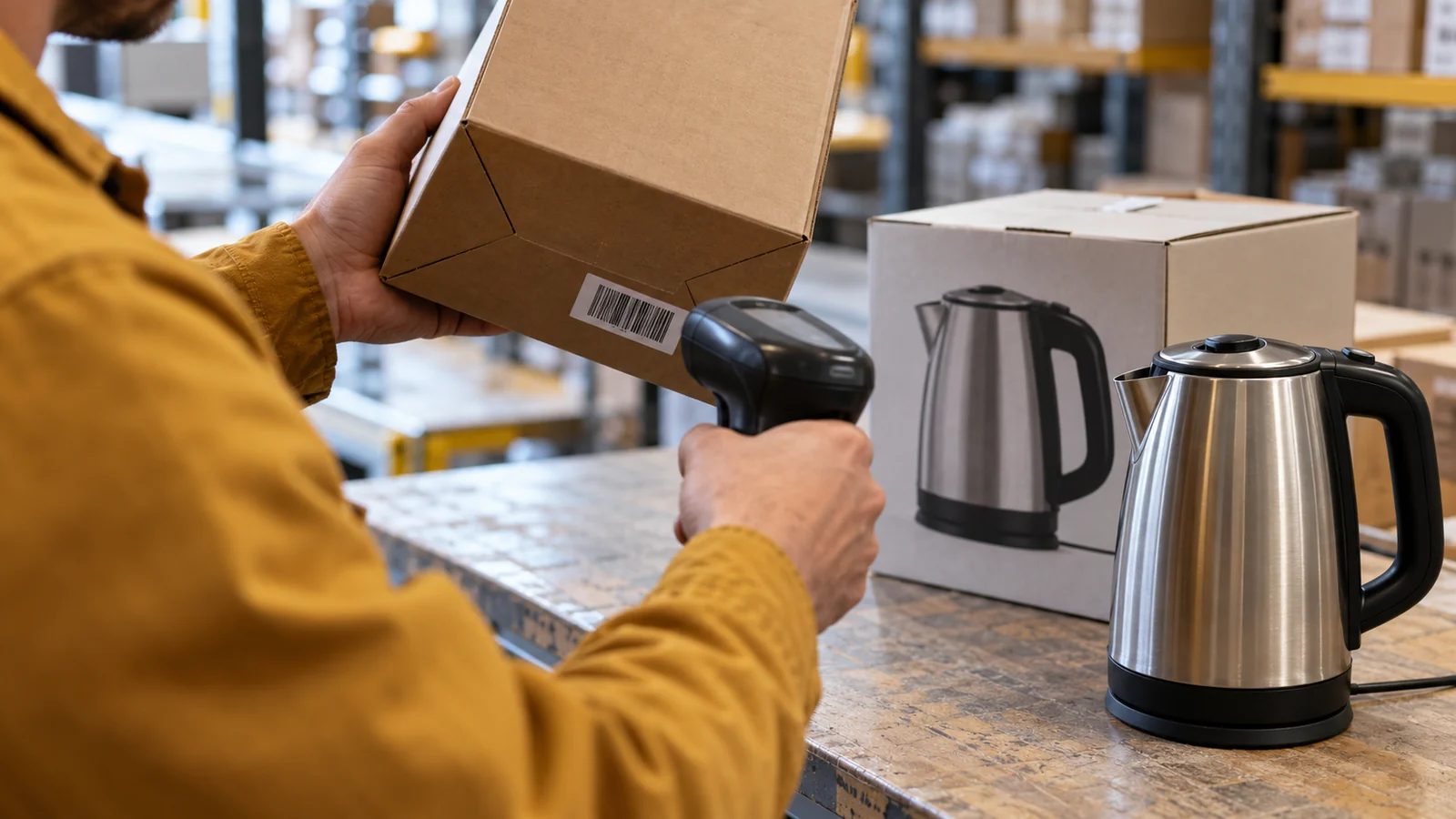
Featured image: AI-generated editorial artwork, not a photograph of a real BuzzBoost office, client or result.