







A customer finds the right product, opens the page and discovers that their size or preferred colour is missing. Another customer can choose both options, but cannot add the item to the basket. Before changing your theme or installing another extension, establish exactly where the choice breaks down.
For a UK retailer, the useful question is whether a combination you actually sell is configured correctly and can be bought. Start with one affected product and one known example. Work through its records, then its selection controls, and finish by checking the basket and order.
Record the exact combination that fails
Ask for the product URL, requested size and colour, device, and steps taken. A screenshot helps, but a short recording of the selections is often more useful. Keep customer details out of anything shared publicly.
We recommend separating these symptoms before making changes:
- An option never appears: the customer cannot find the required size or colour.
- Options appear, but the combination fails: each choice is visible separately, yet choosing both produces an unavailable message.
- The controls do not respond: tapping a swatch or selecting an option changes nothing.
- The wrong item reaches the basket: selection appears successful, but the chosen size or colour is incorrect afterwards.
Repeat the same steps as a signed-out visitor on a phone and a desktop. Compare the affected product with one that works. Record when the problem began and whether it followed an import, product edit, theme change or software update. That gives your developer a reproducible starting point.
Check whether the variation actually exists
Attributes describe the available choices; variations represent combinations offered for sale. Adding a new colour to an attribute does not automatically create every matching variation. WooCommerce’s missing-variation guidance explains this distinction, confirms that relevant attributes must be enabled for variations, and notes that a variation without a price is hidden.
Open the product’s editing screen. Confirm that its type is Variable product, inspect Attributes, then look through Variations for the exact combination. Check the size and colour together, rather than stopping when you find either value somewhere in the product.
For example, a hypothetical shoe range could offer tan in two sizes and black in only one. Seeing both colours and both sizes in the attributes does not establish that every pairing should be sold.
Use your actual range as the reference. If a missing combination is genuinely available, add that combination and complete its details. If you never sell it, keep it unavailable and consider whether the product page explains the range clearly enough. Avoid generating every possible pairing simply to make the list look complete.
Inspect price, status and stock for that combination
Check the variation’s Enabled state and price. WooCommerce can hide out-of-stock variations when stock is managed per variation, backorders are disabled and hiding out-of-stock items is enabled. The parent product may remain visible. These availability rules are covered in the variable-product documentation.
Compare the affected variation with a working sibling and the item you can actually supply. Save changes and update the product before testing again.
Do not mark the whole range in stock or enable backorders merely to reveal a missing choice. Agree the commercial position first: can you fulfil this exact size and colour, at the displayed price, within the promised delivery time?
If someone else manages stock, involve them before changing quantities. Keep a note of the original values so a display investigation does not become an unexplained inventory adjustment.
If the problem followed an import, inspect the source file
A useful manual repair should survive the next catalogue update. Export an affected product and compare its records with the supplier file or integration mapping. Concentrate on the parent relationship and the exact attribute values.
WooCommerce’s current CSV importer guidance specifies separate variation rows, a Parent reference and matching attributes. It also documents version-dependent behaviour: from 11.1, eligible new variations can be created during an update import; 11.2 adds Global Unique ID matching when ID and SKU are blank. Check the installed version before choosing the import method.
For the built-in importer, review:
- whether the required variation row is present;
- whether its Type and Parent fields identify the intended relationship;
- whether its attribute names and values match the parent product;
- whether the import report shows failed or skipped rows.
If you use a supplier connector or a separate import extension, check its own mapping and logs too. Test a corrected sample on staging before applying it to the catalogue. Then repeat the normal update with that sample: the aim is to prove that the process preserves the repair, rather than relying on someone to fix the same product after every upload.
Check whether the selection behaviour is expected
On the classic variation form, the default dropdown behaviour changes above 30 variations. Smaller products dynamically narrow the remaining choices; larger products can show options whose final combination is unavailable. WooCommerce describes this in its guidance on dynamic variation dropdowns. Custom controls can behave differently.
That distinction is worth checking when the complaint is “I can select both options, so why can’t I buy them?” Compare the attempted combination with the actual range before treating the message as a fault.
Ask your developer which product form is running: the classic form, a block-based product template or custom selection controls. Agree the expected behaviour for that implementation. If a threshold change is proposed, ask for a performance check on a representative large product before applying it across the shop.
Investigate swatches, scripts and template customisations
Once the product records are correct, investigate how the page presents them. A colour tile that looks selectable still needs to select the intended variation and carry that choice into the basket.
Run a controlled conflict test
WooCommerce’s conflict-testing procedure recommends a backup, staging, testing with a default theme and reducing the active plugins, then reintroducing them individually. Have your developer run that comparison on a protected copy with outbound customer messages and live payments controlled.
Prioritise the components involved in the failing interaction: swatch tools, product-page customisations and script optimisation. Change one thing at a time and repeat the original steps. If the test works only with a component disabled, record the versions and evidence before asking its developer for a fix.
Also compare a fresh page load with the version a returning visitor receives. WooCommerce’s conflict guidance notes that browser caching can obscure testing. A temporary cache bypass helps diagnosis; leaving caching disabled indefinitely needs a separate performance decision.
Check overridden templates
For classic theme overrides, WooCommerce’s template repair guidance explains how System Status identifies outdated overrides and why customisations must be retained when updating them. An outdated-template warning is a reason to investigate; it does not prove the cause of this particular fault.
Give the developer the affected page and repeatable test. Ask them to preserve the intended design while repairing the interaction. Replacing the whole product layout should follow evidence that it is necessary.
Prove the repair through to the order
Before closing the issue, agree a small test set that represents your range. We recommend checking:
- The original missing combination and a neighbouring choice that already worked.
- A combination you intentionally do not sell, to confirm it remains unavailable.
- Changing colour after selecting size, then changing size again.
- The chosen attributes, quantity and price in the basket and checkout.
- A controlled test order, checking the variation recorded for fulfilment.
- The same journey on mobile, followed by another check after the next normal catalogue update.
Use an agreed test-payment method and account for any test stock movements. Keep the evidence with the repair so future catalogue or theme work can repeat it.
If the records and page controls disagree, BuzzBoost’s web development service covers the functionality and integrations behind the customer journey. Tell us which product and combination fails, what the customer sees and when it started. That is a practical starting point for a focused investigation.
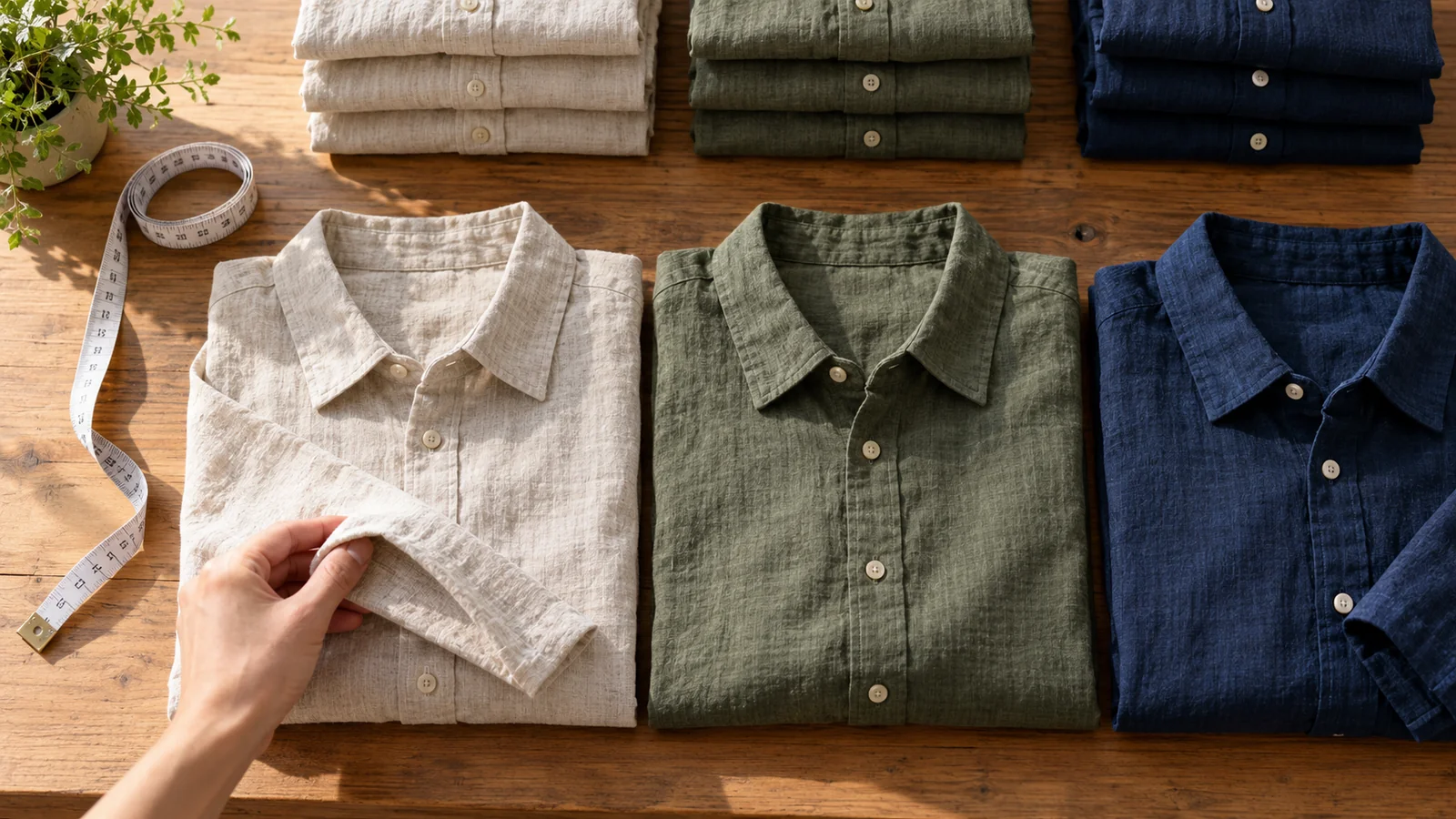
Featured image: AI-generated editorial artwork, not a photograph of a real BuzzBoost office, client or result.