






A customer submits your enquiry form. Their details appear in HubSpot, but the person who should call them receives nothing. The website looks as though it is working, while a genuine opportunity sits unanswered.
Start by finding one saved submission and tracing the alert it should have produced. The useful question is where the handover stopped: recipient selection, personal notification preferences, or delivery to the receiving inbox. Rebuilding the form before answering that question adds work without establishing the cause.
Confirm that the actual submission is saved
Find a recent example with a known submission time, page address and intended recipient. A contact record alone is insufficient evidence: you need the particular enquiry you expected the team to receive.
In Marketing > Forms, use the form’s Actions > View submissions option. Select the relevant date range and open the response. HubSpot’s guide to viewing form submissions explains how to inspect the submitted fields and open associated CRM records.
Record the form name, timestamp and whether the customer’s message is complete. If the submission is absent, investigate capture first. If it is present, use that example throughout the notification investigation. This prevents several people testing different forms and drawing conflicting conclusions.
Identify which alert your team expects
Ask the intended recipient to show you an older example that worked. Establish whether it was a standard form submission alert, an internal email sent by a workflow, or a notification from the website’s own form plugin.
These routes need separate checks. If a workflow was meant to send the message, inspect its execution history for that submission. Our guide to HubSpot workflows not enrolling contacts covers the enrolment investigation. For a standard form alert, continue with the recipient and notification checks below.
Check the recipient rules for the form you actually use
HubSpot forms: owner notifications and named recipients
Open the affected form’s settings. In the current editor, Submission settings contains Notify contact owner and Add users to notify. Owner notification depends on the contact having an owner; the named-user or team option works regardless of ownership. These are separate choices in HubSpot’s current form configuration guide.
Compare the intended business rule with those choices. If a central enquiries team should see every request, check that the configuration actually names the appropriate recipients rather than relying entirely on ownership.
Recipients must be active HubSpot users; an unfinished invitation is insufficient. The legacy editor uses the Options tab. Publish recipient changes using the editor’s update controls: saved but unpublished edits do not fix the live form. HubSpot documents these requirements in its form notification setup guide.
HubSpot-hosted pages: inspect the page override
When the form sits on a HubSpot website or landing page, inspect that page’s form module too. Its option to send notifications to specified email addresses instead of the form defaults can replace the default recipients. HubSpot’s page-level form settings guide explains this override.
If one landing page alerts the team and another does not, compare their module settings. Agree the intended recipients for each page before changing anything, then update the affected page. A central form setting is only part of the evidence when a page has its own recipient choice.
Forms collected by the non-HubSpot forms tool
A website form can feed HubSpot without being a HubSpot-built form. For forms collected through HubSpot’s non-HubSpot forms tool, use Settings > Marketing > Forms > Non-HubSpot Forms. Check the recipients under Send email notifications for collected forms submissions to and save any correction.
HubSpot’s non-HubSpot form notification instructions specify active-user recipients and account-level scope across collected forms. Check that scope before adding someone. This route is different from a custom integration that creates CRM contacts; ask whoever maintains that integration which component is responsible for alerting the team.
Check the recipient’s own notification preferences
Being selected on the form does not complete the check. In the intended recipient’s account, open Settings > Notifications. Check that the email channel is enabled and that the Form submissions topic is enabled for the required channel. Save changes and allow a few minutes for them to take effect.
HubSpot’s user notification guide confirms that preferences are specific to each user. It also notes that the form submission topic only appears for users with access to the forms tool, and unsubscribing from a notification email turns off that notification type.
Check each affected person separately. One colleague receiving an alert proves little about another colleague’s preferences. Compare the email result with an enabled in-app channel to help narrow the investigation.
Trace email delivery after checking the settings
Confirm that the email address on the HubSpot user matches the inbox being checked. Search all mail, including junk, deleted items and folders reached through mailbox rules, for noreply@notifications.hubspot.com. For managed business email, ask IT to check quarantine and receiving-mail logs against the submission time and recipient.
HubSpot’s system and notification email troubleshooting guide also identifies a previous bounce as a possible cause: subsequent emails can be dropped until the user’s bounce status is resolved. A Super Admin can investigate that status. Use mail evidence to decide whether any targeted allowlisting is needed.
If the destination is a distribution list, HubSpot’s form notification guidance warns that one member unsubscribing can unsubscribe the whole list. Resubscription uses a previous notification email.
Keep the investigation tied to the missing internal alert. Changing customer marketing-email authentication settings without evidence of a connection can distract from the actual fault.
If only particular submissions produce no alert
Compare a missing example with a successful one. HubSpot’s specific-submission troubleshooting guidance says notification emails depend on an address in the default Email field and associated tracking cookies. Ask your developer to assess the submission route and consent behaviour together, then identify a supported notification approach.
Preserve the two examples and their timestamps. A repeatable difference gives support or your developer something concrete to investigate.
Recover enquiries that have already been missed
While the repair is being checked, assign someone to review saved submissions directly. Work from the last point when the team knows the alert route was functioning, and compare those enquiries with recorded replies, calls and open sales tasks.
For each genuine unanswered request, agree who will respond and record what happens. Check for an existing conversation before contacting the customer, particularly where more than one colleague handles enquiries. Prioritise requests whose dates or requirements are still actionable.
Keep this recovery review separate from testing. Changing notification settings is not evidence that historical enquiries have been followed up. The practical deliverable is a reconciled set of requests, with each one assigned, answered or deliberately closed for a recorded reason.
Verify the complete live handover
Arrange a controlled submission through the actual public page using test details your team controls. HubSpot’s form preview guidance says preview mode does not submit forms or collect submission data, so a preview alone cannot prove delivery.
Use a clearly identifiable test message and check the complete route:
- The submission contains the expected enquiry details.
- The intended person receives the required alert and can find the saved enquiry.
- A colleague outside the intended recipient group is not unexpectedly alerted.
- The team can assign the response and record the follow-up.
Repeat on any affected landing page with different recipient settings. Where your process relies on contact ownership, include both an owned and an unowned test case. Record the change, test time, recipient and outcome so the next person can distinguish a verified repair from an assumption.
For an important enquiry route, agree a routine check of saved submissions alongside notifications. That gives the team a way to spot unanswered requests even when an alert is missed.
If your website captures enquiries but the sales handover remains unreliable, BuzzBoost can help review the form, CRM and follow-up process through our email and CRM service. Talk to us about where your enquiry handover is breaking down.
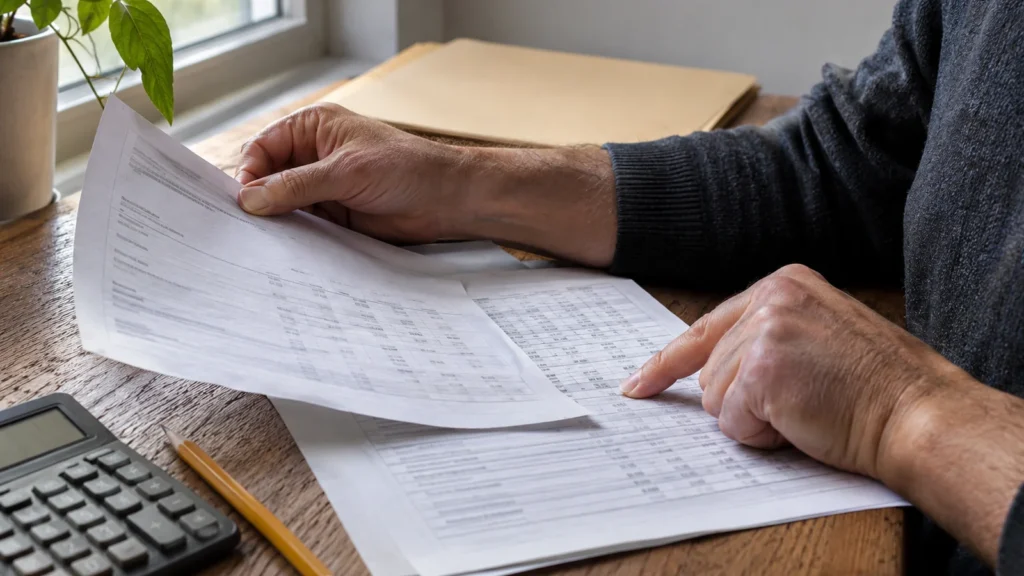
Featured image: AI-generated editorial artwork, not a photograph of a real BuzzBoost office, client or result.