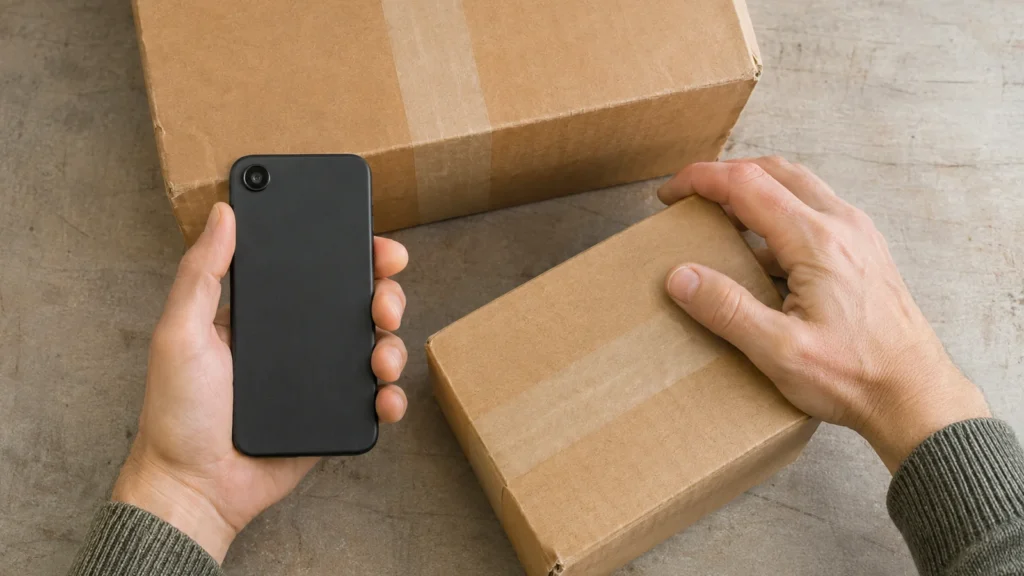








An online order arrives at your shop, but the team there cannot pack it. Your warehouse has the goods and staff ready to dispatch. Or one purchase creates work at two locations when you expected everything to leave together.
Before rearranging Shopify’s order routing rules, establish why that particular order reached that location. The useful checks are whether the intended location could fulfil it, what stock was available when it arrived, and which priority rules applied. Then deal with outstanding orders separately from the configuration for future purchases.
This guide concerns orders already placed. If customers cannot select delivery at checkout, start with our guide to Shopify shipping not being available.
Capture one affected order and the dispatch you expected
Choose a recent example and ask the fulfilment team where each item should have been picked. Replace “the wrong warehouse” with an explanation: “Both products should leave our warehouse together because the shop cannot pack online orders.” That gives you an operational requirement to test.
Record:
- The order number, creation time and sales channel.
- The exact variants and quantities, plus the customer’s selected delivery method.
- The location currently assigned to each group of items.
- The expected location and why your team expected it.
- Whether picking has begun or a fulfilment provider has received the request.
Keep screenshots of the relevant settings before editing them. Check with colleagues whether anyone has already moved the order, corrected stock or changed a rule. Your investigation needs to explain the original assignment, rather than a later manual correction.
Check whether the intended location was eligible
A preferred warehouse still needs a usable fulfilment setup. Shopify’s current routing troubleshooting guidance identifies several reasons an expected location can be skipped:
- Online fulfilment is switched off for that location.
- Its address is unverified, preventing the closest-location rule from measuring distance.
- It lacked stock when the order was placed.
- For stores using shipping profiles, it was outside the relevant active destination zone.
Inspect the affected product’s delivery configuration, rather than assuming every location has the same coverage. Confirm whether settings changed after the order arrived. An address verified this morning does not explain yesterday’s assignment.
The same guidance says routing rules only apply with two or more fulfilment locations. If you have one, investigate the location or integration setup before spending time rearranging rules that cannot influence the result.
Compare available stock with stock at the order time
Seeing units on a shelf today does not establish what Shopify could allocate yesterday. Start with the exact variant at the expected location.
Shopify distinguishes Available, On hand, Committed, Unavailable and Incoming inventory. On hand includes units already committed or set aside; incoming stock is not available to sell until received and made available. A healthy total can therefore conceal a shortage of sellable units.
Use the variant’s inventory adjustment history to compare changes around the order time. Shopify records the activity, time and staff member, app or channel responsible for adjustments. Look for a reservation, replenishment or integration update that explains the difference.
For example, if a restock was recorded after the order arrived, the warehouse’s current quantity is poor evidence that routing failed. If a recurring stock update is wrong, repair that input before changing priorities. Ask whoever maintains the integration to explain which system owns the quantity and when it updates Shopify.
Read the routing rules in their actual order
Open Settings > Shipping and delivery > Order routing and record the rules currently shown. Use the saved configuration in your store; do not assume it still matches the original defaults.
Shopify’s official routing overview, published on 2 November 2026, describes the default sequence as reducing split fulfilments, staying within the destination market, then choosing the closest location. Rules work from top to bottom, so proximity is not the only consideration.
As an illustration, imagine a customer orders boots and socks. Your nearby shop has the boots, while the warehouse has both items. With reducing splits as the first priority, sending both from the warehouse can be the intended outcome. This example illustrates the decision; it is not a report of a retailer’s results.
Decide whether warehouse priority or fewer parcels matters more
Shopify’s routing rule definitions explain that ranked locations prioritise groups you choose. They also confirm that “closest” uses straight-line distance, rather than driving distance, and that minimising splits cannot make every order possible from one location.
Write down your policy before moving a rule. Should the warehouse always take priority over the shop? Or should either location dispatch when it can send the complete order? Those choices can produce different outcomes for the same basket.
Ask your developer to demonstrate the proposed sequence against representative orders before saving a change. Treat “prefer the warehouse” and “never allocate online work to the shop” as separate requirements to configure and verify.
Check what changing the default location would actually achieve
Shopify’s location fulfilment guidance separates default-location settings, routing preferences and preventing a location from fulfilling online orders. Changing the default alone does not establish that every online order must leave that address.
Preventing a location from fulfilling online orders also removes its inventory from the product’s online quantity. Before disabling a shop, check whether the warehouse can support the products and quantities you advertise. Otherwise, fixing dispatch allocation may create an availability problem for customers.
Agree the intended role of each location with the people managing stock and dispatch. A location used for storage, shop sales and occasional online fulfilment needs a deliberate policy.
Recover outstanding orders according to their fulfilment status
Review the affected queue as its own task. After changing settings, check every outstanding example instead of assuming it has moved to the right team.
For eligible unfulfilled orders you handle yourself
Shopify’s instructions for changing a fulfilment location describe opening the order, choosing Change location from the relevant fulfilment section, selecting the items and destination location, then confirming the change.
That general procedure excludes local delivery and in-store pickup orders; use their specific supported workflows. For a shipped order, confirm the new team has the goods and can meet the customer’s delivery promise before moving it. Check the assignment and quantities afterwards.
For orders sent to a fulfilment provider
Follow Shopify’s fulfilment-service cancellation and reassignment process. If no request has been sent, the location can be changed directly. If requested but not accepted, cancel the request first. Once accepted, request cancellation and wait for the provider to accept it before changing location.
Reverting an order to Unfulfilled does not itself stop the provider dispatching it. Confirm cancellation with the provider before arranging another shipment. Give one person responsibility for reconciling Shopify, the provider’s acknowledgement and the physical picking work, so a location correction does not become a duplicate delivery.
Verify the complete handover with controlled orders
Use your established test-order process and coordinate with dispatch before testing. For each case, write the expected location and parcel arrangement first, then compare the saved order with the work received by the team or provider.
- A single item available at both intended dispatch locations.
- A mixed basket that one location can fulfil completely.
- A basket that genuinely requires stock from different locations.
- A case where the preferred location has no available stock.
- A destination relevant to the original unexpected assignment.
Check item quantities, location assignment, stock changes and the receiving team’s acknowledgement. Clear up test work afterwards, then review the next genuine orders with the team. Keep the expected outcomes and the final configuration together so future stock or integration changes can be checked against them.
If the problem crosses stock synchronisation, fulfilment apps and website configuration, our web development and integration service can help trace the handover. Contact BuzzBoost with an example order, the expected dispatch location and the checks already completed.
Featured image: AI-generated editorial artwork, not a photograph of a real BuzzBoost office, client or result.