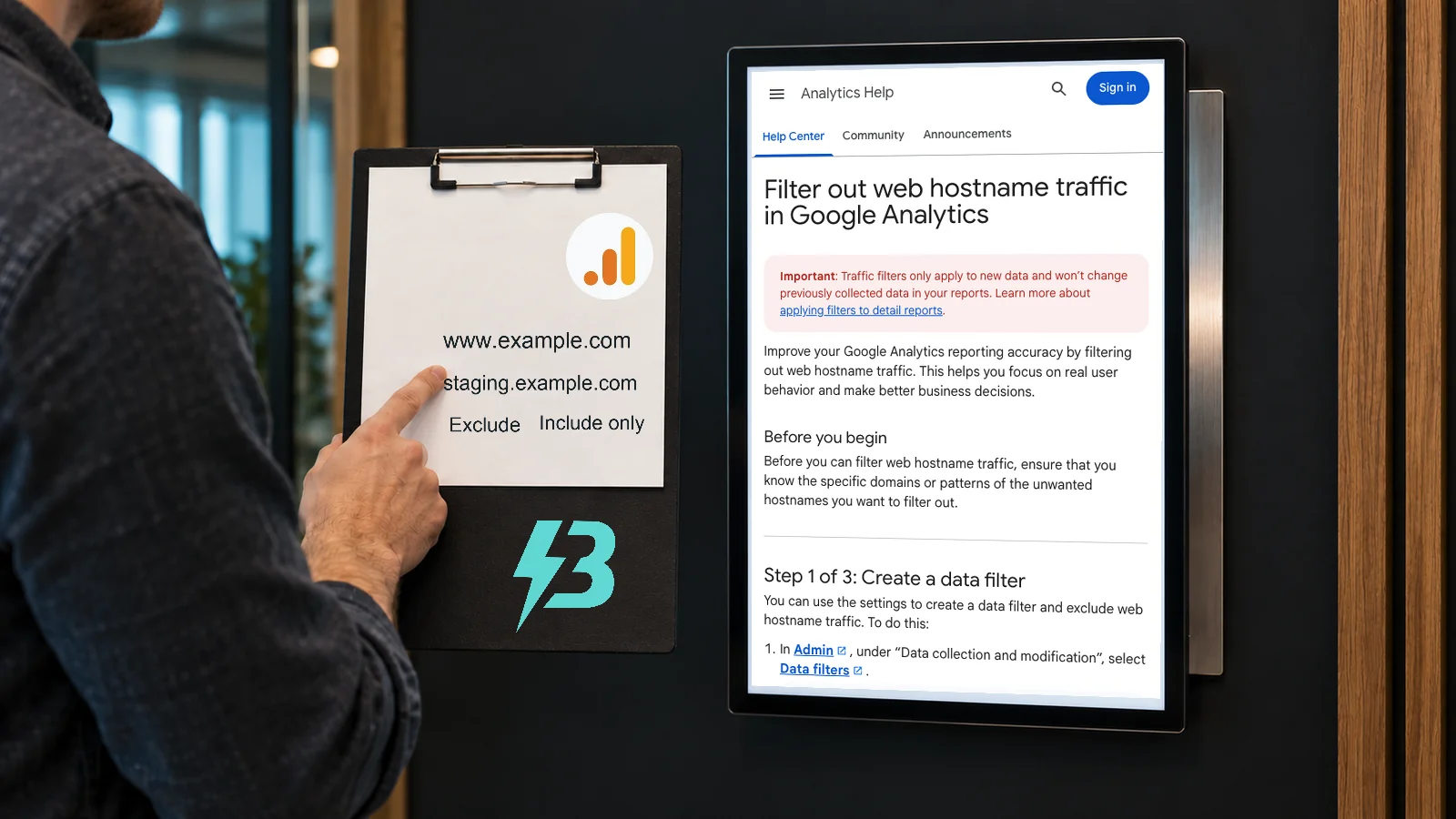

A staging website is there for testing changes. If it sends events to the same Google Analytics 4 property as your live website, those tests can enter the figures you use to judge marketing. Unfamiliar domains in your reports raise a similar question: which websites should this property actually measure?
GA4 hostname filters give you a way to control incoming web data by domain. Before activating one, identify the domains you need to keep, choose the right operation and test what it catches. A missing booking domain can be more damaging than the staging traffic you wanted to remove.
What changed in GA4 hostname filtering?
Google introduced hostname exclusion filters in June 2026. Its 21 September 2026 release update added an inclusion option for an approved-domain list. The current data-filter documentation also recognises active “Include only” filters alongside “Exclude” filters.
That gives you two decisions: exclude a known unwanted hostname, or include only a complete set of approved hostnames. The second requires more confidence in your domain inventory. For a business with a live site, booking system and campaign microsite, “our website” may mean several addresses.
A hostname is where the page lives
In https://www.example.com/contact/, the hostname is www.example.com. It is not the protocol, the page path or the website that referred the visitor. Google’s dimension reference defines Hostname as the domain and subdomain of the visited URL.
For this illustrative business, www.example.com is the live site and staging.example.com is the staging site. They share a parent domain but serve different purposes. A rule aimed at the parent domain without checking its scope could catch both.
Also distinguish a reported hostname from proof of a genuine customer visit. Google documents that manually setting page_location overrides the automatically collected value used for the Hostname dimension. A hostname rule is a data-quality control; it cannot establish whether every retained event represents a real person.
Make a domain inventory before creating a rule
Ask the person responsible for tracking to review recent data by Hostname and Event name, alongside the sites and systems the business actually uses. Start with these questions:
- Which hostname serves the main public website, including any working version without “www”?
- Do landing pages or campaign microsites send events to this property?
- Does a booking, checkout or customer portal use another domain that you deliberately measure?
- Which staging, preview and development addresses are being used?
- Are any events sent by a CRM or another server integration?
Assign each known hostname an owner and a purpose. A booking provider’s domain should prompt a check with the booking and tracking teams, rather than an automatic exclusion. An unfamiliar hostname needs investigation before you decide it is unwanted.
Use a period that includes ordinary trading activity and any relevant campaign or booking journeys. A quiet week may miss a domain used only for occasional events or seasonal promotions.
If a copied staging site is sending data to the live property, ask the developer to separate its measurement setup. Our recommendation is to address that configuration as well as filtering the resulting data. Otherwise, the next site copy may recreate the same problem.
Choose Exclude or Include only deliberately
Exclude a known staging hostname
For the example above, an exclusion matching staging.example.com is a focused starting point. It addresses a hostname whose purpose you understand without requiring a complete list of every legitimate domain.
Google’s hostname-filter guide documents “Exactly matches” and “Contains”. An exact match requires the whole value to match. “Contains” can match the supplied text anywhere in the value. Prefer the narrowest rule that covers the unwanted hostname you have verified.
Include only approved hostnames
An approved-domain list may suit a property with a clearly documented scope. It can exclude unexpected hostnames without adding each one individually. However, a new landing-page or booking domain needs to be considered before it starts sending data.
Google’s September update states that hostname Include filters do not apply to Measurement Protocol events and block events with empty hostnames. Check both points against your implementation before treating an allowlist as complete protection.
Existing filters matter too. Google says active “Include only” filters are combined as a union and applied first, followed by active exclusions. Adding another inclusion filter does not necessarily narrow the approved set. Review the whole property configuration before introducing a new rule.
Test an exclusion before making it active
You need Editor access or above at property level. In Admin, open Data collection and modification, then Data filters. Create a Web hostname traffic filter, name it clearly, choose your exclusion condition and leave its state at Testing.
Google recommends waiting 24–36 hours before validating a hostname filter in Testing. Its suggested free-form exploration uses Test data filter name and Event name as dimensions, with Event count as the metric. Filter on the exact name you gave the test filter. Add Hostname to inspect the domains involved.
The worked check here concerns an exclusion. For an “Include only” rule, verify the operation and the meaning of its test results in your property before activation; do not interpret an exclusion test as proof that an allowlist is correct.
Run a controlled visit on staging, then check that it is identified by the test. Separately check the live website and every legitimate booking or landing-page journey in your inventory. Keep a record of the hostname, journey, test time and expected outcome.
A staging match alone is insufficient. You need evidence that the unwanted data is identified and that the important customer journeys remain outside the exclusion. Leave the rule in Testing if that evidence is incomplete.
After validation, change the filter to Active and save it. Google says activation can take a further 24–36 hours. Use the documented processing window when reviewing the result.
Understand what an active filter can cost
Active data filtering permanently changes incoming data. Google states that excluded events are not processed and will not be available in Analytics or BigQuery. Making a rule inactive later stops its application to future data; it does not recover the events already excluded.
Filters also leave historical data unchanged. If staging activity affected last month’s report, creating a filter today will not recalculate that month.
For an investigation, use a report filter to inspect data for selected hostnames while keeping the underlying collection intact. When presenting a filtered historical report, explain its scope so colleagues can understand why it differs from an earlier version.
Use the right control for the remaining tests
A hostname filter will not separate staff from customers when both visit the live hostname. Google provides internal-traffic filtering based on IP addresses or ranges for that purpose.
Developer testing is another case. A developer-traffic filter targets activity sent in debug mode, allowing developers to keep troubleshooting in DebugView. Agree which method covers each testing route, rather than expecting one hostname rule to handle everything.
Finally, identify your server integrations. Google’s Measurement Protocol documentation explains how systems can send server-to-server and offline events directly to Analytics. If your CRM uses that route, review its test and production separation independently, because hostname Include filters do not cover those events.
Give the filter an owner
Keep a short change record containing the rule, operation, purpose, validation evidence, activation date and person responsible. Add domain review to the checklist for website launches, booking changes and new campaign pages.
A reduction in recorded activity after filtering does not, by itself, show that marketing performance fell. Check whether it reflects the intended removal of tests, an accidental exclusion or another change. Annotate the reporting period before making budget decisions.
Once collection is dependable, our guide to connecting enquiries with qualified leads and sales covers the next reporting decision: which outcomes the business should use.
BuzzBoost’s analytics and reporting service brings tracking and data-quality checks into the same review. If you need to establish which domains belong in your GA4 property, talk to us about your current setup. Start with the domain inventory and the customer journeys you need to preserve.
Featured image: AI-generated editorial artwork, not a photograph of a real BuzzBoost office, client or result.