






Your customer has received a dispatch email, but its tracking button opens the wrong courier. Another customer sees no delivery updates, even though the parcel has arrived. Your team ends up answering questions that the order page should help resolve.
Start by separating three things: the tracking details saved against the shipment, the information the carrier supplies, and the route the customer uses to reach it. A fault in one does not mean the whole shop needs rebuilding.
Use one affected order to locate the gap. Establish what was saved, what the carrier knows and what the customer can actually open before buying another app or changing your theme.
Start with one affected order
Choose a recent example with a clear customer complaint. Compare it with an order that worked, preferably using the same carrier and dispatch process. Record:
- Which items were dispatched and whether they travelled together.
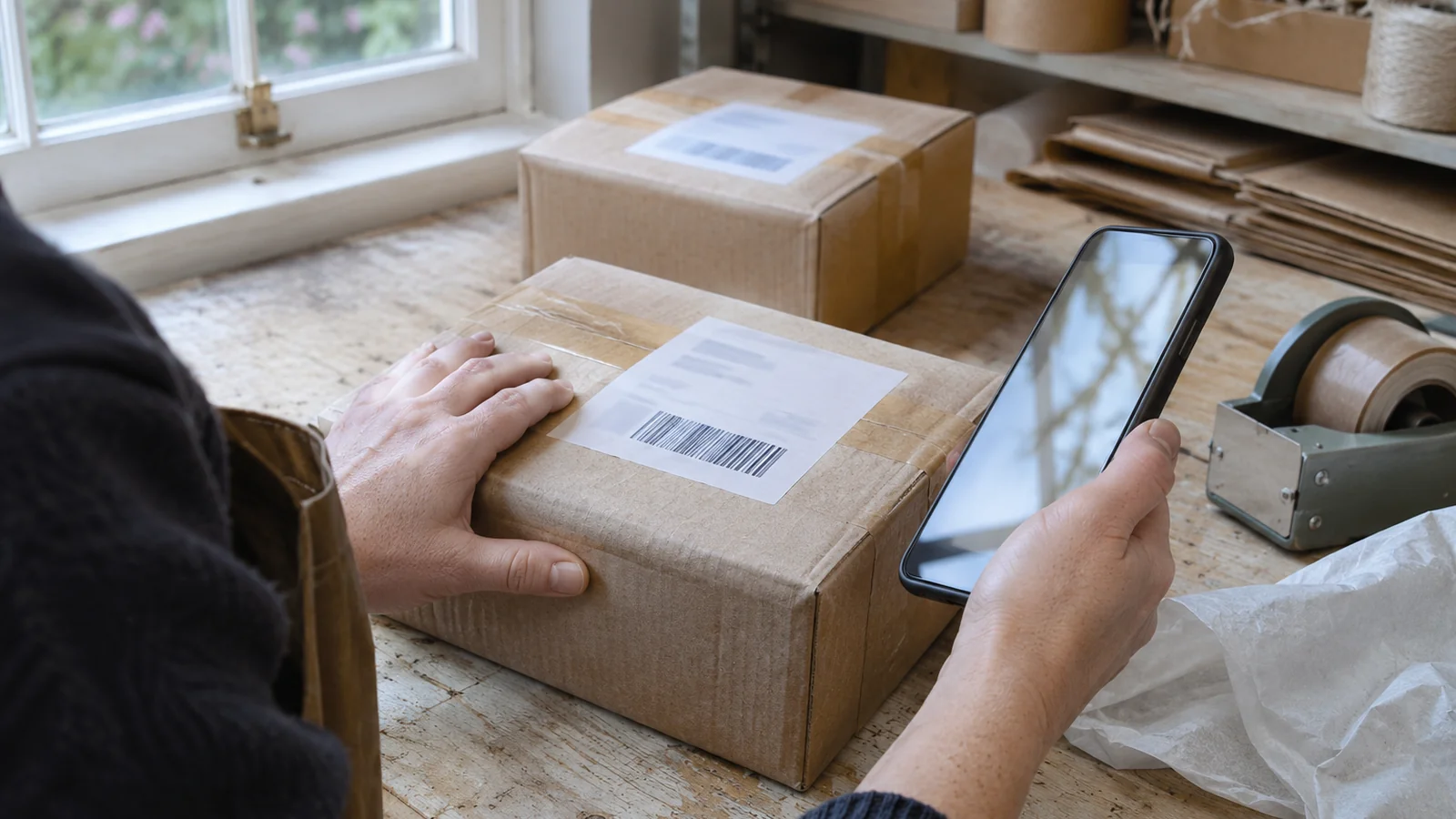
- The tracking number, selected carrier and saved tracking URL.
- Whether staff, a shipping app or a fulfilment provider added those details.
- The email or account link the customer actually opened.
- What the carrier’s own website shows for that parcel.
Use the original customer route where possible. Opening a shipment from an administrator’s account does not demonstrate what a customer sees in their inbox or on their phone.
If the order went to the wrong warehouse in the first place, investigate Shopify fulfilment location and order routing separately. Correct tracking cannot repair an incorrect physical dispatch.
Check the number, carrier and link together
Open the relevant order and inspect its fulfilment details. Compare the tracking information with the shipping provider’s record. Pay particular attention to the carrier selection: an automatically recognised number format is not proof that the correct company was selected.
Shopify says a manual carrier selection takes priority over automatic detection. If the carrier is unavailable, you can select Other and supply its full tracking URL. Its tracking troubleshooting guidance also explains that apps should send the carrier and URL alongside the number; sending only a number leaves carrier identification to automatic matching.
For a UK retailer using a shipping app, ask its provider to trace one affected shipment. Establish what the app sent and whether a later update replaced corrected details. Fixing individual orders will not resolve a mapping error that keeps creating new ones.
Test the saved link itself. Does it open the intended carrier, and can the customer identify their parcel? Shopify notes that some carrier websites require number entry after the link opens, so check that the customer has what they need.
Distinguish a working link from automatic delivery updates
A customer may be able to track a parcel on the carrier’s website while Shopify receives no automatic delivery events. Those are different capabilities.
Shopify’s fulfilment and supported-carrier guidance states that buying a carrier’s shipping label through Shopify does not necessarily mean its shipments are tracked automatically. Some carriers support automatic tracking only for particular number formats or shipping regions. Carriers outside its automatic-tracking list can still have a customer-facing number and URL.
Check the current support for the service you actually use before promising live updates inside the order page. If the carrier’s own page has no useful events either, ask the carrier to investigate that shipment. Changing an email template cannot create missing carrier information.
If the carrier has useful updates but Shopify does not, give Shopify or the integration provider the specific order, fulfilment, tracking number and comparison. Avoid treating a missing map or unchanged label as proof that a parcel has physically stopped moving.
Check whether the customer notification was sent
Tracking can be saved correctly without the customer receiving the expected message. Review the action that created or updated the fulfilment, including whether customer notification was enabled.
According to Shopify’s customer notification documentation, staff can suppress the shipping confirmation when fulfilling an order and suppress the shipping update when changing tracking details. Out-for-delivery and delivered notifications depend on corresponding events received from the carrier or fulfilment app; event accuracy and timing vary by carrier.
That gives you two separate checks: was the notification enabled, and did its triggering event occur? If a message was sent but did not arrive, move on to the recipient address and delivery investigation. Our guide to business emails going to spam covers that separate problem.
When repairing older orders, decide which customers need an update. Avoid sending a fresh dispatch message for a parcel already received without explaining why they are hearing from you.
Inspect customised order and shipping emails
If the message arrives but its button is missing or leads somewhere unhelpful, inspect the actual notification template. Check order confirmation, shipping confirmation and shipping update separately.
Shopify’s order status email instructions explain that default templates include the customer’s order status link. Customised templates need checking, and the order-specific link can be added using {{ order_status_url }}.
Ask your developer to preserve a copy before editing. Shopify warns that reverting a template to default removes its customisations and cannot be undone. A small link repair may be enough; establish what would be lost before resetting the whole email.
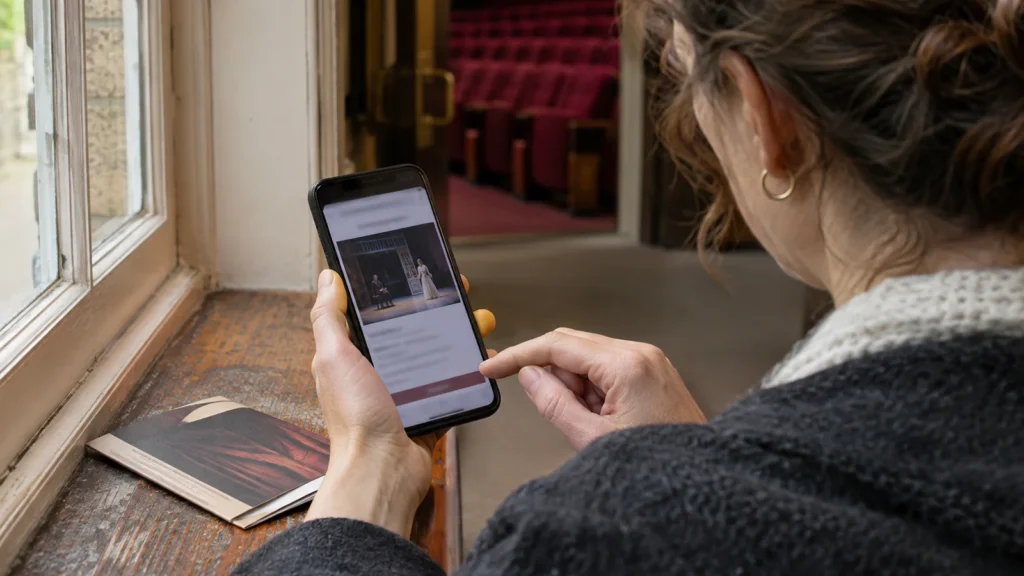
Test the delivered email on a phone. Check that the tracking action is easy to find, its wording matches its destination and the customer has a clear way to ask for help if tracking is unavailable.
Allow for split shipments and identity checks
An order with two parcels needs a clear route to both. Shopify’s order status page documentation explains that partial fulfilments create additional sections, including when different carriers are involved.
Compare the items in each fulfilment with the physical dispatch. A valid tracking number attached to the wrong part of an order can still leave the customer unsure which items are coming. If several parcels are involved, check each one rather than stopping when the first link works.
Also distinguish an access check from a failed page. Shopify may ask customers to log in or verify their order number and checkout email address or phone number before showing full details. Its documentation says this does not require you to make customer accounts mandatory at checkout.
Check the contact route too. Shopify states that order and shipping updates are not sent by SMS, even though an order confirmation can be. A phone-only checkout should not lead your team to assume a shipping email exists.
Verify a new dispatch before closing the issue
Write down what a successful repair must demonstrate. Use a controlled test order for the email and page journey, then verify carrier events against an authorised real shipment. A template preview cannot prove that the carrier integration works.
- Confirm the correct items and fulfilment are being tested.
- Add tracking through the usual staff or app workflow.
- Check the saved number, carrier and destination link.
- Confirm the intended customer message arrives and its link works on mobile.
- Compare the order page with carrier information as the shipment progresses, allowing for the service’s supported features.
- Repeat for split shipments or another dispatch route if those were affected.
Review older affected orders separately. Correct genuine data errors, explain any remaining tracking limitations to customers and give the team a clear owner for unresolved carrier or app cases. Keep the repair tied to the original complaint: can the customer now find useful information about the right parcel?
Give the repair a clear scope
A useful brief includes one affected order, the customer’s route, what the carrier shows, who adds tracking and the evidence needed to accept the fix. That is more actionable than asking someone to “sort out shipping”.
If customers keep chasing parcels because your shop, shipping app and notifications do not join up, talk to BuzzBoost about reviewing the order tracking journey. We can help identify the handover that needs attention and define a focused next step.
Featured image: AI-generated editorial artwork, not a photograph of a real BuzzBoost office, client or result.